Learn how to create and publish Print-on-Demand products in Publisher Hub, including setting up your publisher profile, configuring product details, and making your products available for sale.
How to create a POD Product
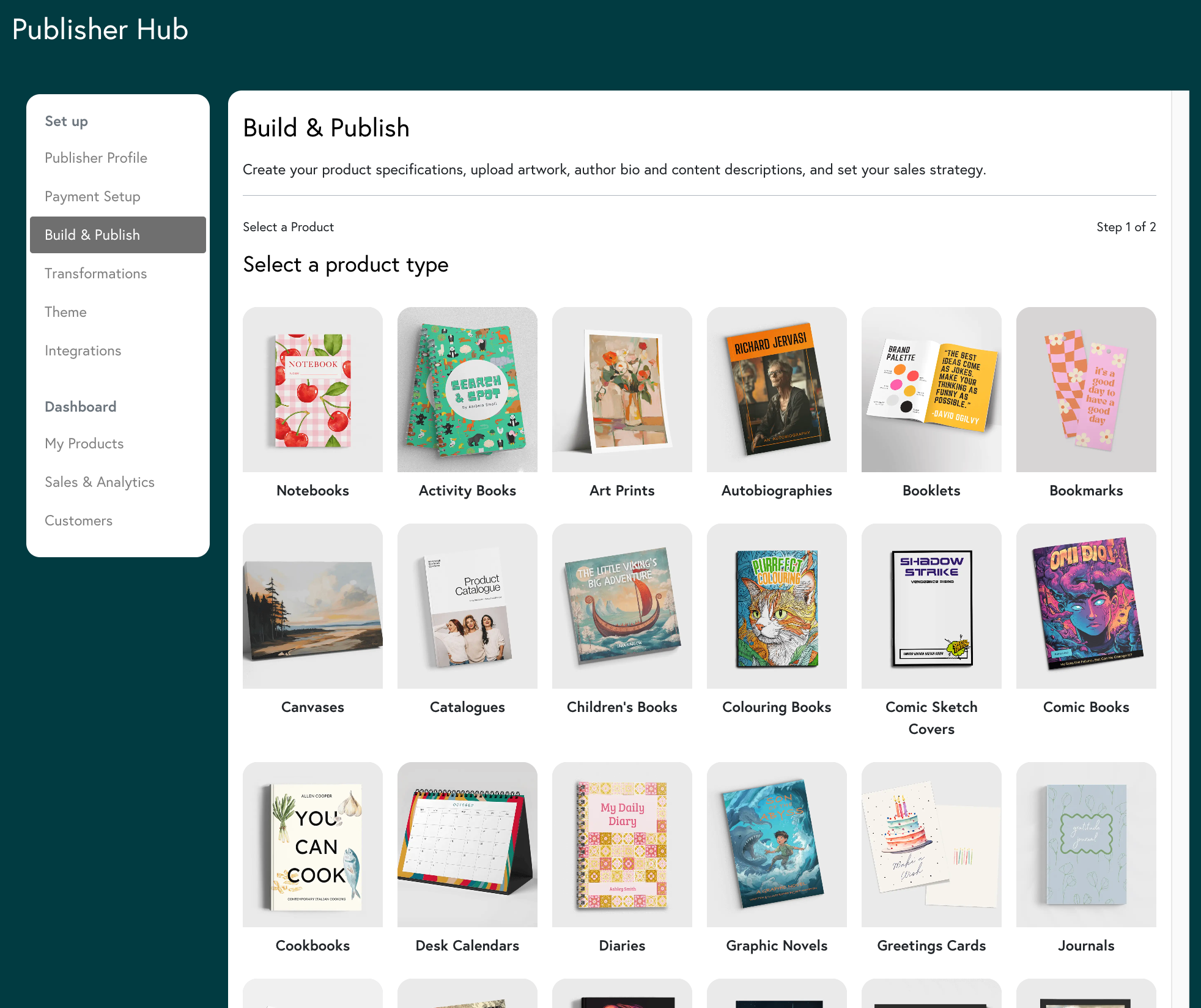
To create a new product from scratch:
- Go to your Publisher Hub
- Click the ‘Build & Publish’ tab
- Select the product type
- Choose your material specifications such as size, paper weight, binding, page count and lamination.
- Continue to Product Details
You will be redirected to the Order Manager and prompted to then:
- Upload your artwork
- Complete the Product Details tab by inputting your product listing and author details
- Set your pricing strategy
- Add product genre and label tags
- Review and confirm your product
- Enable selling and select 'Save & Publish' to submit your files for review by a print expert.
Mixam will check if your artwork is print-ready. Once complete, you will receive a notification via email that your product setup has been approved.
Watch our PrintLink setup video tutorial on YouTube for further details and setup instructions.
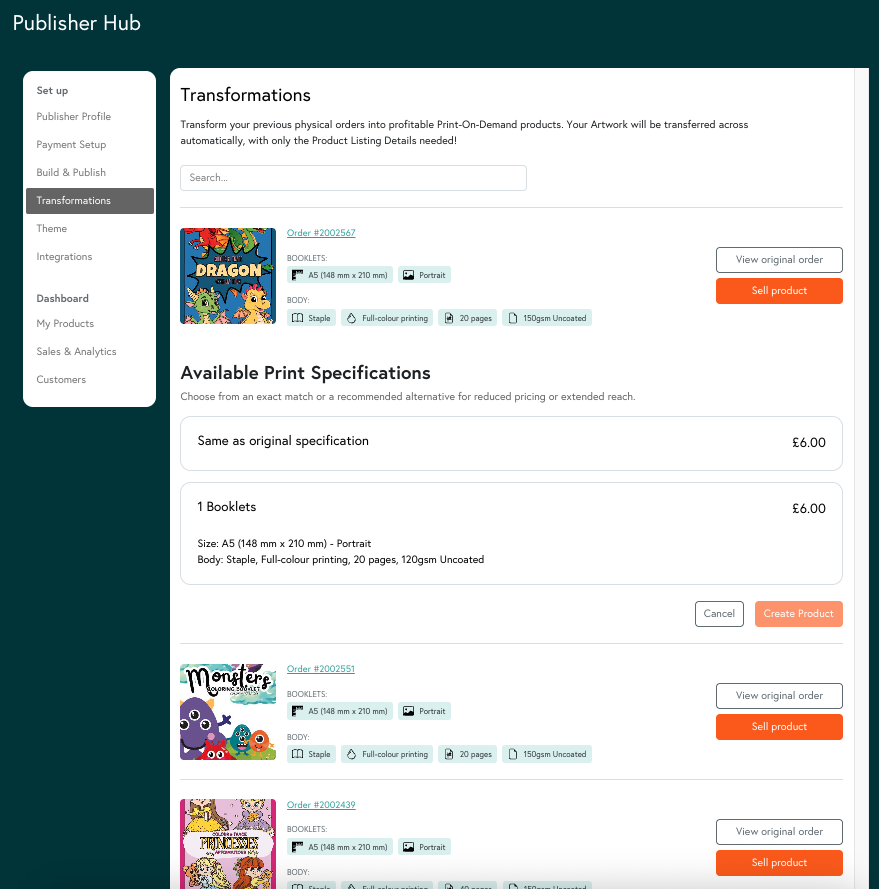
To transform a previously ordered item into a POD product:
- Go to your Publisher Hub
- Click the ‘Transformations’ tab
- Find the item you want to sell by using the keyword search or scrolling
- Click ‘Sell product’
- Choose from the options presented. We will offer the original specifications and/or alternative specifications that are similar or may enable you to make a greater profit
- Click ‘Create product’
- Select ‘Continue to Product Details’
- Fill in the Product Details Tab. You may also wish to adjust your artwork or product specifications in the Artwork tab.
- Review and confirm your product
- Enable selling and select 'Save & Publish' to submit your files for review by a print expert
Mixam will check if your artwork is print-ready. Once complete, you will receive a notification via email that your product setup has been approved.
Providing you have successfully linked a payout account for your commission earnings, customers can then purchase your product
If some specifications aren’t available, we’ll offer suitable alternatives of equal print quality, such as different paper weights and finishes or lamination types. Sizes and pagination cannot be changed, but we will provide options to give you the most affordable option.
If a previously ordered product is unsupported for conversion to Print-On-Demand, ‘publishing unavailable’ will be displayed. This indicates we are currently unable to produce a close match to the product you have selected.
Uploading your Artwork
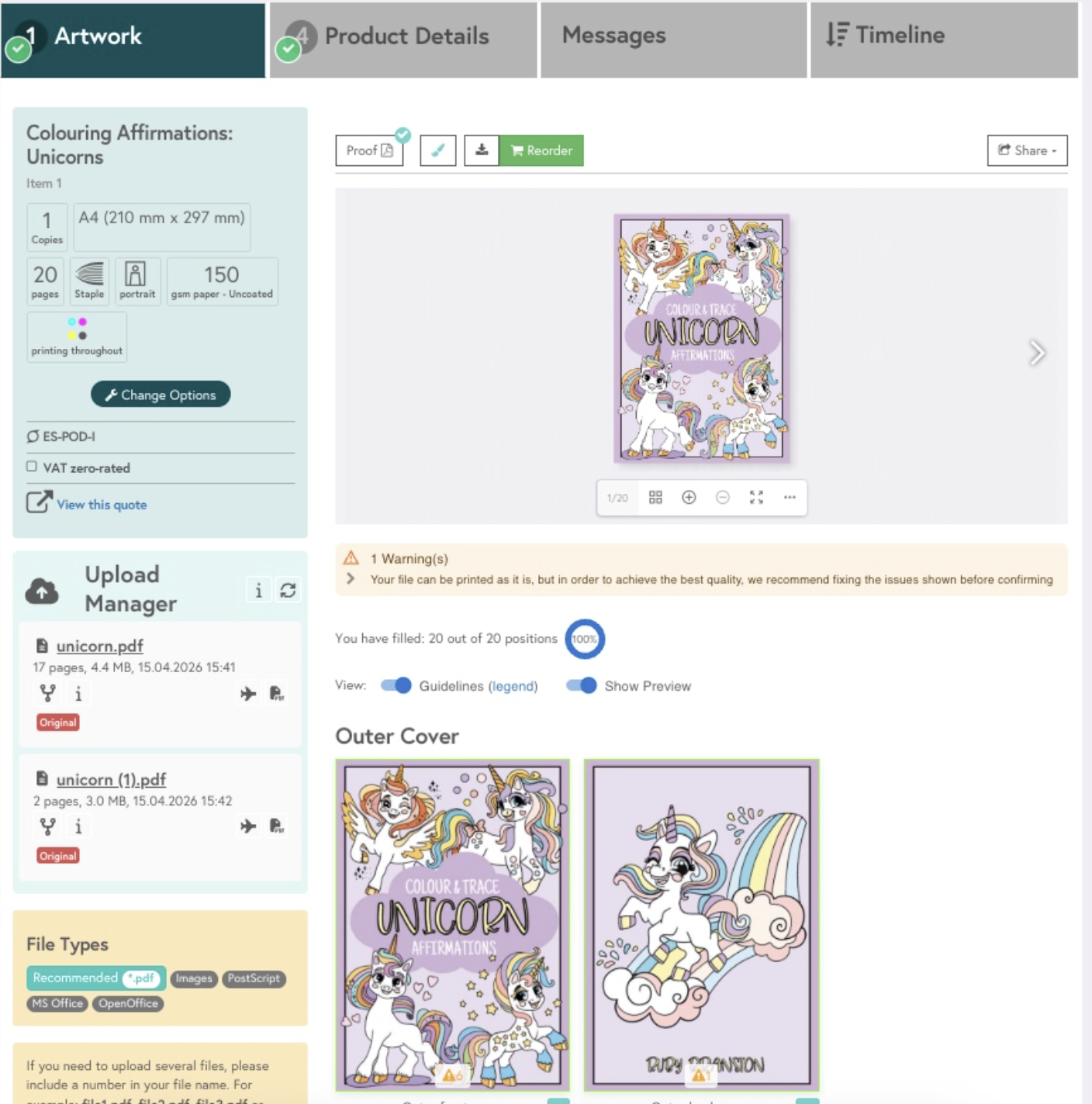
Artwork Tab
Add artwork by uploading files from your phone or computer, pasting a URL link to your files, choosing from DropBox or using our Design Online tools and editors.
Our software flags possible print issues in your files when you upload them. We will provide artwork warnings for missing pages, scaling, bleed, trim and quiet area concerns. Please follow the on-screen recommendations. Check the preview and download the proof to view your files in Adobe Acrobat Reader.
Our software flags possible print issues in your files when you upload them. We will provide artwork warnings for missing pages, scaling, bleed, trim and quiet area concerns. Please follow the on-screen recommendations. Check the preview and download the proof to view your files in Adobe Acrobat Reader.
Adding your product listing details
Product Details Tab
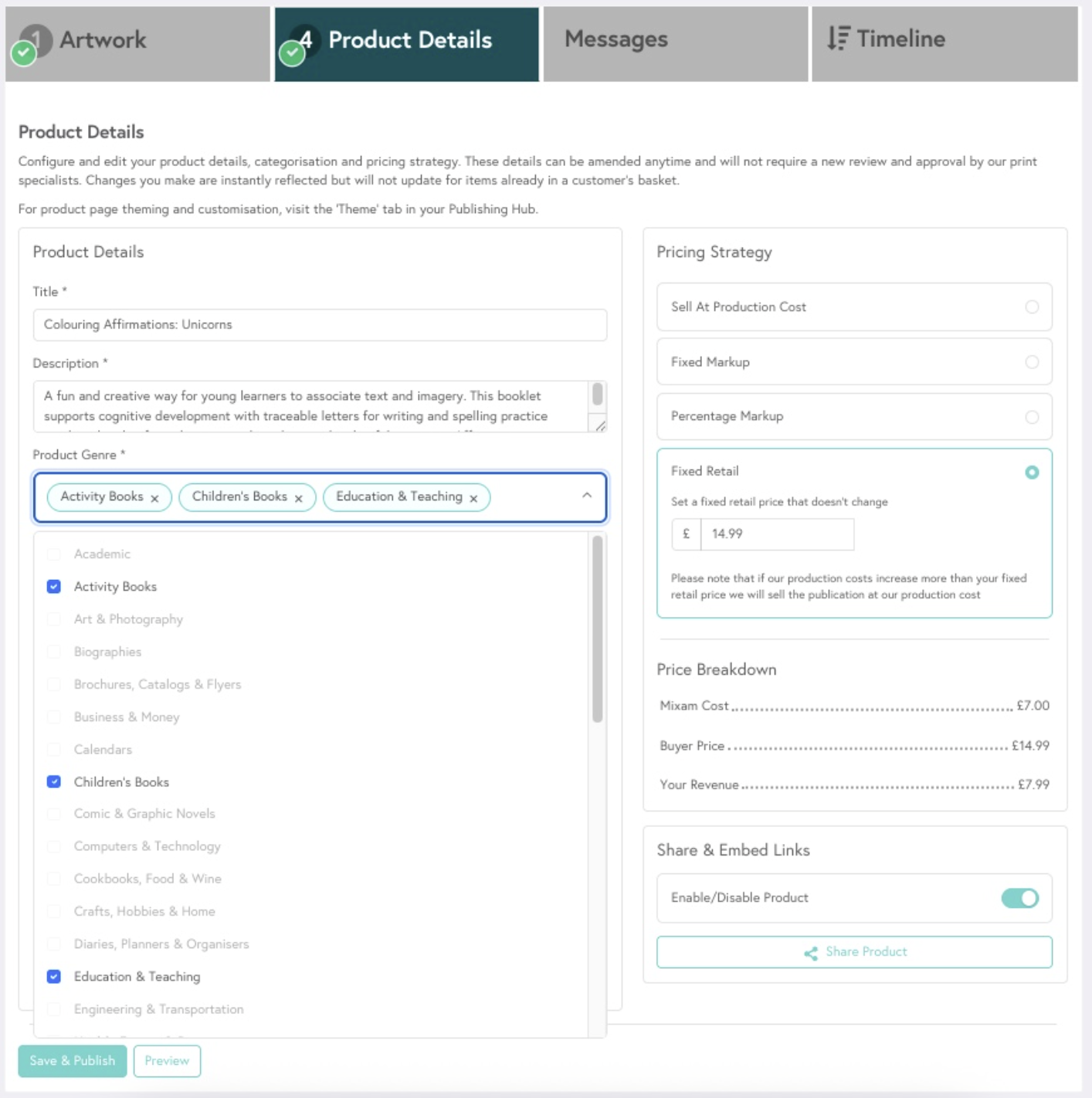
- Title: field to enter your product’s title.
- Description: provide a story synopsis, blurb or overview. It will appear at the top of your PrintLink product page.
- Product Genre: enter a minimum of one, maximum of 3 genre tags that best categorise your product.
- Product badge & Colour: Choose a badge to display on the top right of your product thumbnail such as ‘Best Seller’, ‘New’ or ‘Limited Edition’.
- Preview Type: Tease and entice your customers with a sneak peek of your product. Select whether to show a full or partial preview of your product’s contents.
Authors
- Authors: include one or multiple author names with the ‘Add Author’ button and the option to include a short biography for each.
Pricing Strategy
Settings to determine the amount of profit you make and what retail price your customers will see.
Note: at this stage, the retail price excludes shipping fees. Customers can choose their regional or international shipping speed, service and price at checkout - this cost does not affect your commissions.
You can update your strategy anytime and updates will apply to future purchases.
How to update your pricing strategy
- Go to your Publisher Hub
- Click the ‘My Products’ tab
- Find the relevant product you wish to update and click ‘Edit’
- Click on the ‘Product Details’ tab
- Select your new pricing strategy and fill out the value field
- Check the price breakdown matches your desired buyer price and revenue
- Click ‘Save & Publish’
| Pricing Strategy | Publisher commission and Customer price impact |
| Sell at production cost |
|
| Fixed retail |
|
| Fixed Markup |
|
| Percentage Markup |
|
Share & Embed Links
A unique URL and QR code is generated for your product that you can share with customers so they can find, view, and buy your product from a Mixam hosted product page and checkout. Paste them online into socials or websites in bios, description links or on-video tags - the opportunities are endless! The URL and QR code remain the same, even if you edit your publication - giving you assurance that wherever your customers discover your link, they are always viewing the most up to date version of your content and design. A Mixam print expert must approve it before it becomes available for purchase.
Enabled: Enables a customer to view the product, add it to their cart and complete the checkout process. The product must be confirmed by you and approved by Mixam to allow purchase.
Disabled: Prevents a customer from adding it to their basket and proceeding to checkout, however, customers who have already added the product to their basket or are in the process of checking out, may still be able to purchase.
Preview: See how your product presents to your customers before saving.
Confirmation and Approval
Confirm your Product
Once you have completed the Artwork and Product Details tabs, confirm your product to lock in your print and preview details. By confirming your product you acknowledge that the product preview aligns with your intention and that you agree to the Terms and Privacy Policy. At this stage you should be content with the orientation of artwork, order of pages and the product details present as you expect.
The Approval Process
A print expert will check your files to ensure they’re ready for printing. You will get an email when your POD product is approved or if there are file issues that our experts feel need your further attention. You can make the suggested changes and click ‘Save & Publish’ to restart approval or let us know you wish to proceed without the recommended changes. Once your product is approved, you will receive an email update and will be ready to begin selling.
Making changes to Print-On-Demand Products
Active products can be updated after they have been shared or purchased online. Depending on your product edits, this step may restart the approval process. Once approved, the updates will apply to future purchases. While your product is unapproved, customers cannot purchase it but can still access it via the URL. Note any material changes can potentially impact the production cost and subsequent commission value and retail price of your product.
Updating print files on POD products
- Go to your ‘Publisher Hub’
- Click the ‘My Products’ tab
- Find the relevant product you wish to update and click ‘Edit’
- You will be redirected to the order manager for your product. Click ‘Yes, unconfirm’ in the page header to allow editing.
- Click on the ‘Artwork’ tab to adjust your print files
- After you are finished editing or uploading files and are content with the position of your content, check any warning messages and advisories.
- Confirm your order in the page header to submit your product adjustments for Mixam approval.
Updating print specifications on POD products
- Go to your ‘Publisher Hub’
- Click the ‘My Products’ tab
- Find the relevant product you wish to update and click ‘Edit’
- You will be redirected to the order manager for your product. Click ‘Yes, unconfirm’ in the page header to allow editing.
- Click on the ‘Artwork’ tab
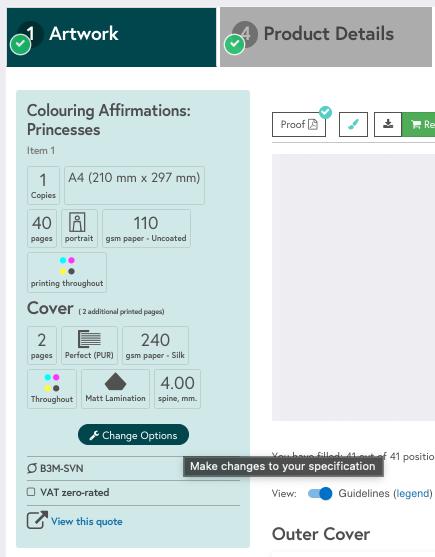
- Click ‘change options’ located in the product specifications summary in the left panel
- Adjust your product specifications on the Instant Quote Calculator then click ‘Update Product’
- Confirm your order in the page header to submit your product adjustments for Mixam approval.
When will my product require approval?
Upon initial set up, your product will always require Mixam approval. However future edits will depend on the type of change:
|
Updates That Require Reapproval |
Updates That Don’t Require Approval |
|
|
Affect on Customer Orders: We’re committed to delivering high-quality prints efficiently. However, we cannot apply changes to PrintLink publications after a customer places an order or intercept orders. We recommend carefully reviewing your content and specifications before saving them.
Now that you know how to create, manage and publish your print-on-demand products, you can gain insight into The Buyer Experience.
